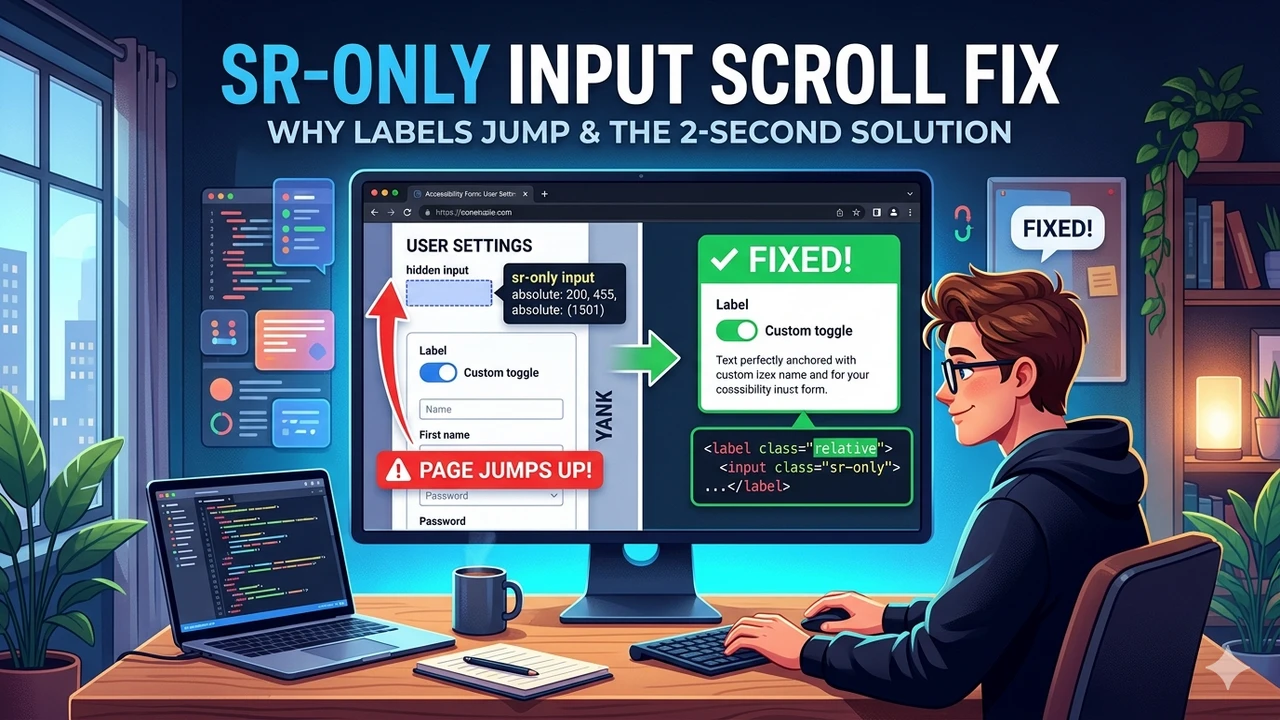
If you’ve ever used Tailwind CSS or standard accessibility practices to hide an input element, you might have encountered a frustrating bug: you click a custom checkbox or radio button label, and suddenly the page jumps to the top.
This isn't a random glitch; it’s a direct result of how browsers handle focus and CSS positioning. Here is the breakdown of why it happens and how to fix it in seconds.
The Problem: The "Teleporting" Input
To create accessible custom inputs, developers often use the .sr-only (screen reader only) class. This keeps the input available for assistive technology while hiding it visually.
The standard CSS for sr-only looks something like this:
/* Tailwind's sr-only logic */
.sr-only {
    position: absolute;
  width: 1px;
  height: 1px;
  padding: 0;
  margin: -1px;
  overflow: hidden;
  clip: rect(0, 0, 0, 0);
  white-space: nowrap;
  border-width: 0;
}
Because the input is position: absolute, it is pulled out of the normal document flow.
The Physics of the Jump
When you click a <label>, the browser automatically shifts focus to the associated <input>.
The browser’s default behavior is to ensure the focused element is visible. It asks: "Where is this input?"
If the input's parent container does not have position: relative, the absolute-positioned input looks for the nearest ancestor that does.
Often, that ancestor is the <body> or the very top of the document. The input "lives" at the top of the page, even if the label you clicked is at the bottom.
The browser scrolls the window all the way up to "show" you the focused element.
The Fix: Anchor the Input
The solution is simple: you must tell the hidden input exactly where to stay. By adding relative positioning to the wrapper (the label or a div surrounding the input), the sr-only input remains contained within that specific spot.
The "Before" (Broken):
The input floats to the top of the nearest relative container (usually the page top).
<label>
  <input type="checkbox" class="sr-only">
  <span>Click me</span>
</label>
The "After" (Fixed):
By adding relative, the input stays exactly where the label is. The browser sees the focus is already in the viewport and does not scroll.
<!-- Added 'relative' class -->
<label class="relative">
  <input type="checkbox" class="sr-only">
  <div class="custom-checkbox-ui"></div>
  <span>Click me</span>
</label>
Summary
If your page jumps on click, check your wrappers.
- The Symptom: Clicking a label triggers a scroll to the top.
- The Cause:
sr-onlyinputs without a relative parent container. - The Cure: Add position: relative to the parent of the hidden input.
It takes two seconds to implement, but it saves hours of debugging and prevents a jarring experience for your users. Good accessibility shouldn't come at the cost of a broken UI.